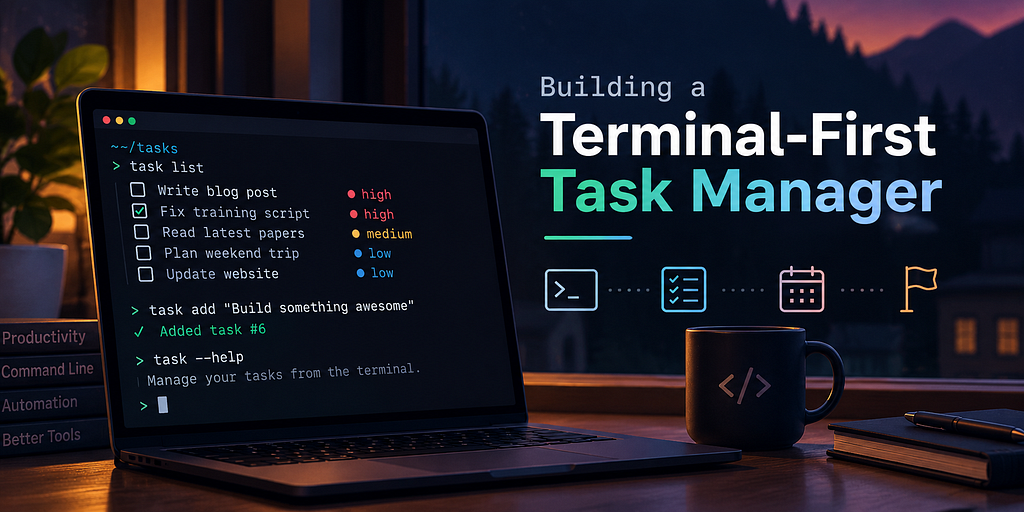
Most productivity tools today live in the browser or inside large GUI applications. They often come with sync services, dashboards, integrations, and a lot of complexity. That’s useful for teams, but for many developers and researchers who spend most of their time inside the terminal, switching contexts just to check a task list can feel unnecessarily heavy.
Recently, I experimented with building a lightweight alternative: todo-cli, a terminal-based task manager designed to fit naturally into a command-line workflow.
You can check out the project here:
https://github.com/sadimanna/todo-cli
The goal of the project was simple: build a minimal, keyboard-driven task manager that works entirely from the terminal. It also served as an experiment in AI-assisted development — I used Codex to generate much of the implementation, while focusing mainly on architecture, prompting, and iteration.
This post walks through the features, design ideas, and workflow of the tool.
Why a Terminal Todo Manager?
Many developers already manage their workflow inside the terminal:
- running experiments
- editing code
- managing Git repositories
- interacting with servers
- running scripts
Opening a browser or GUI application just to update a task can interrupt that flow. The idea behind todo-cli is to make task management feel like using other terminal tools, such as:
- git
- htop
- lazygit
Everything should be fast, keyboard-driven, and scriptable.
Core Features
1. Simple CLI Task Management
At its core, todo-cli provides a straightforward command interface for managing tasks.
Example workflow:
todo add "Write experiment code"
todo list
todo done 2
todo delete 3
Tasks can be added quickly without leaving the terminal, making it easy to capture ideas or reminders while working.
Typical operations include:
- adding tasks
- listing tasks
- marking tasks complete
- deleting tasks
- searching tasks
Because everything is CLI-based, commands can also be integrated into scripts or shell workflows.
2. Project Organization
When task lists grow, a flat list becomes difficult to manage. todo-cli introduces project grouping to organize tasks into logical categories.
For example:
research
personal
admin
errands
Tasks belong to a project, allowing you to focus only on the tasks relevant to a specific context.
Example usage:
todo add "Read contrastive learning paper" --project research
todo add "Buy groceries" --project personal
This helps separate work tasks from personal tasks without mixing everything into a single list.
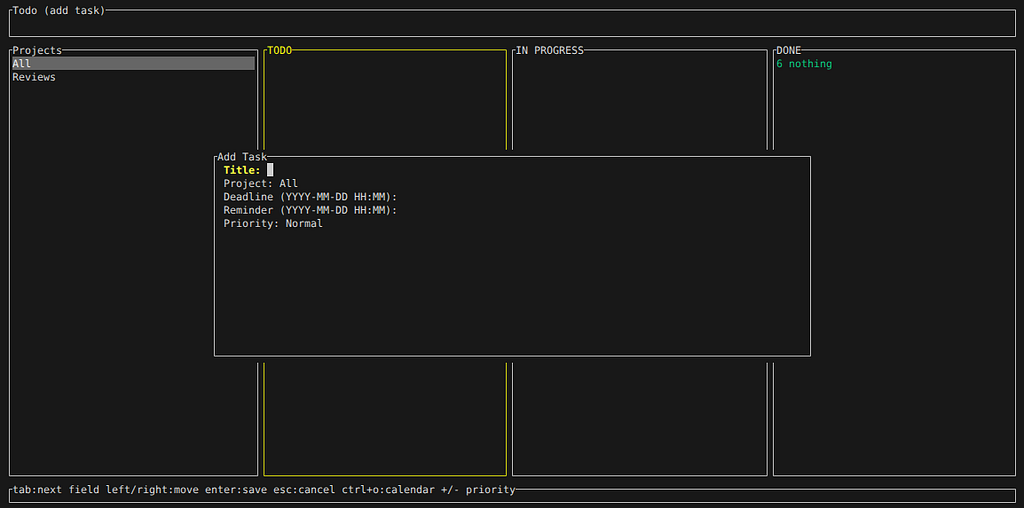
3. Deadlines and Reminders
Tasks can include deadlines and reminder times.
Example:
todo add "Submit conference draft" \
  --deadline "2026-03-15 18:00" \
  --remind "2026-03-15 16:00"
When the reminder time is reached, the system triggers:
- a desktop notification
- optionally, a notification sound
Reminders are handled through Linux systemd timers, which means the tool does not need to run constantly in the background. Instead, the operating system wakes the program periodically to check pending reminders.
This approach keeps resource usage extremely low.
4. Local Storage (SQLite)
All tasks are stored locally using SQLite.
Advantages:
- No external services required
- works offline
- extremely fast
- portable database file
Typical database fields include:
- task title
- project
- deadline
- reminder time
- status
- creation timestamp
Because SQLite is widely supported, it also makes the data easy to inspect or export.
Interactive Terminal Interface
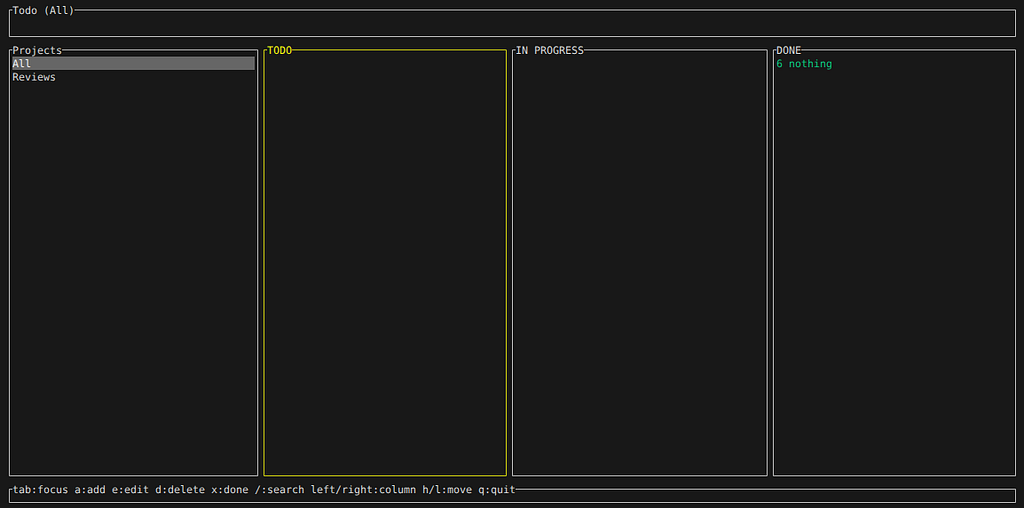
While the CLI commands are useful, many users prefer a more visual way to navigate tasks. todo-cli, therefore, includes an interactive terminal interface.
You can launch it with:
todo ui
The interface is inspired by terminal tools like htop and lazygit.
It includes:
- a project sidebar
- a task board
- a task details panel
- keyboard navigation
Everything can be controlled without using the mouse.
Keyboard-Driven Navigation
The UI is designed around simple keyboard shortcuts.
Examples:
↑ ↓      navigate tasks
← →      switch columns
a        add task
x        mark complete
d        delete task
/        search tasks
q        quit
This allows users to move quickly through tasks without leaving the keyboard.
Kanban-Style Workflow
One of the most useful features is the Kanban board view, which organizes tasks by progress state.
Typical columns:
TODO → IN_PROGRESS → DONE
Example layout:
TODO            IN_PROGRESS        DONE
-------------------------------------------
Write paper     Run experiment     Buy groceries
Read paper      Debug training
Plan study
Tasks can be moved between columns to represent progress.
This gives a quick visual overview of:
- What needs to be done
- What is currently being worked on
- What has already been completed
Fast Task Search
As the number of tasks grows, finding the right one quickly becomes important. todo-cli includes fuzzy search directly in the terminal UI.
Pressing / activates search mode.
Typing something like:
/paper
will instantly filter tasks such as:
- “Write conference paper”
- “Read SSL paper”
- “Outline paper sections”
This makes it easy to locate tasks without scrolling through long lists.
Lightweight by Design
One of the goals of the project was to keep the tool small and efficient.
Typical resource usage:
Binary size:
~4–6 MB
Memory usage:
~5–10 MB
Idle CPU usage:
~0%
Because reminders rely on systemd timers, the application does not run continuously in the background.
AI-Assisted Development Experiment
Another interesting aspect of this project is how it was built.
The majority of the code was generated with the help of Codex. Instead of writing everything manually, the workflow looked more like:
- designing the architecture
- writing prompts describing features
- reviewing generated code
- refining the implementation
This approach felt surprisingly similar to pair programming, where the AI acts as a collaborator that produces drafts quickly while the human guides structure and design decisions.
It also made it possible to prototype features much faster than writing everything from scratch.
Possible Future Features
There are several directions the project could evolve.
Some ideas include:
- recurring tasks
- task tags and priorities
- calendar integration
- markdown export
- statistics for completed tasks
- syncing tasks across machines
Another interesting direction would be tighter integration with development workflows — for example, linking tasks to Git branches or commits.
Readers are welcome to contribute to this project. Please check the GitHub repo todo-cli for more details.
todo-cli attempts to bring those same principles to task management.
At the same time, the project was a useful experiment in AI-assisted software development, exploring how tools like Codex can accelerate building real utilities.
If you’re interested, you can explore the repository here:
https://github.com/sadimanna/todo-cli
Feedback, suggestions, and contributions are always welcome.
If you spend most of your day inside the terminal, a terminal-first task manager might be a surprisingly natural fit.
Building a Terminal-First Task Manager: Introducing todo-cli was originally published in The Owl on Medium, where people are continuing the conversation by highlighting and responding to this story.
Originally published on Medium.