(With and Without Overwriting Local Changes)
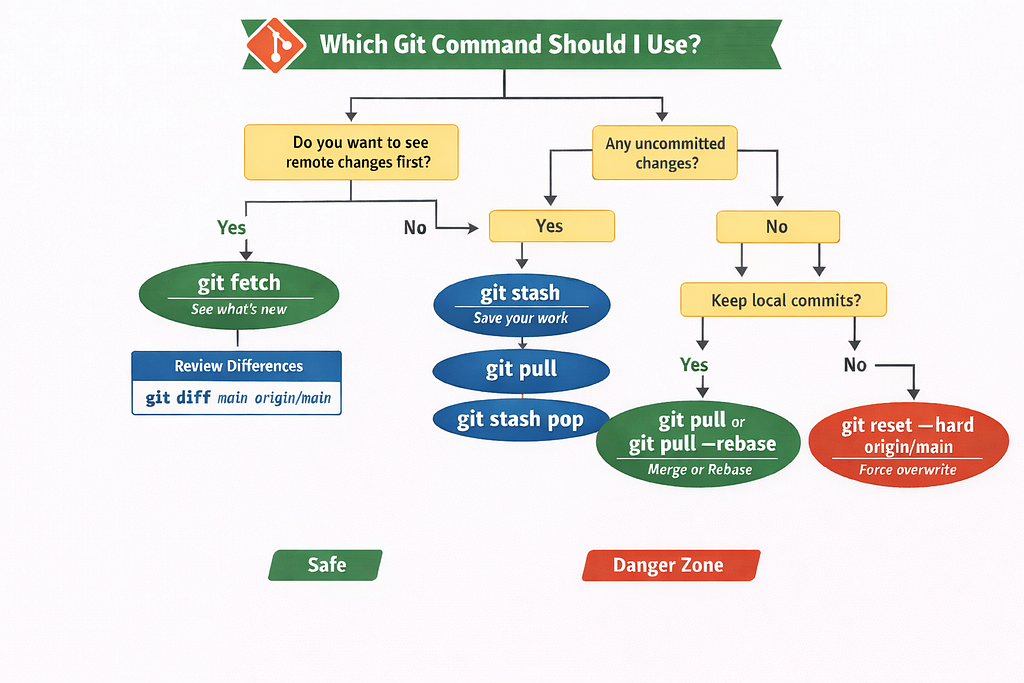
When collaborating with Git, one of the most common (and risky) operations is syncing your local branch with the remote repository. Depending on your situation, you may want to:
- ✅ Pull remote changes without losing local work, or
- ⚠️ Force your local branch to match the remote even if it overwrites your changes.
This tutorial covers both cases, explains what each command actually does under the hood, and shows safe workflows to avoid losing important work.
1. Core Concepts (What’s Really Happening in Git)
Before jumping into commands, it helps to clarify three distinct “states” in Git:
- Remote branch: origin/main (the branch on the server)
- Local branch: main (your local pointer)
- Working tree: actual files on your disk
Important commands operate on different layers:
|    Command  | Affects refs | Affects working tree | Merges history |
| — — — — — — | — — — — — — -| -— — — — — — — — — — | — — — — — -— — |
| `git fetch` |     ✅ Yes   |        ❌ No          |      ❌ No     |
| `git pull`  |     ✅ Yes   |        ✅ Yes         |     ✅ Yes     |
| `git reset` |     ✅ Yes   |   ⚠️ With ` --hard`   |     ❌ No      |
| `git stash` |     ❌ No    |   Temporarily clears  |     ❌ No      |
Understanding this separation prevents accidental data loss.
2. Safest Way: Pull Remote Changes Without Overwriting Local Work
Case A: You have local commits you want to keep
If your local branch has commits that are not yet on the remote, the safest option is to merge or rebase:
git pull origin main
This does:
git fetch origin
git merge origin/main
If you prefer a linear history:
git pull --rebase origin main
When conflicts occur, Git will pause and ask you to resolve them manually. This is the safest collaboration model.
Case B: You have uncommitted local changes
If you have modified files that you don’t want to commit yet:
git stash
git pull origin main
git stash pop
This workflow:
- Saves your uncommitted changes.
- Pulls the remote changes.
- Reapplies your local modifications.
⚠️ git stash pop can produce merge conflicts if the same files are changed upstream.
3. Overwrite Local Changes and Force Sync with Remote (Hard Reset)
Sometimes your local branch is broken, diverged badly, or you simply want your local state to match the remote exactly. This is a destructive operation.
Step-by-step (from Stack Overflow, expanded)
# 1. Fetch all remote updates
git fetch --all
# 2. Backup your current branch
git branch backup-main
# 3. Hard reset your local branch to remote
git reset --hard origin/main
What this does
- git fetch --all
Downloads the latest state of all remote branches into origin/*. - git branch backup-main
Creates a safety copy of your current local branch pointer. - git reset --hard origin/main
Moves your local main branch pointer to origin/main and forces your working directory to match it exactly.
After this, your local branch is bitwise identical to the remote branch.
4. Preserving Local Commits While Resetting to Remote
If you want to overwrite your current branch but not lose your local commits, you can store them on a new branch:
git checkout main
git branch new-branch-to-save-current-commits
git fetch --all
git reset --hard origin/main
Now:
- main matches the remote.
- Your previous local work is safely stored in new-branch-to-save-current-commits.
You can later cherry-pick or merge commits from that branch:
git cherry-pick <commit-hash>
5. Handling Uncommitted Changes Before a Hard Reset
A hard reset will delete everything in your working tree, including staged and unstaged changes. Always protect uncommitted work:
git stash
git fetch --all
git reset --hard origin/main
git stash pop
If conflicts occur during stash pop, Git will leave conflict markers for manual resolution.
6. When git pull Is Not Enough
Many developers assume:
git pull
is always safe. In reality:
- If histories diverged → you get merge commits.
- If rebase is configured → commit hashes will change.
- If your working tree is dirty → pull may fail.
For precise control, prefer:
git fetch
git diff main origin/main
This lets you inspect what will change before touching your branch.
7. Recovery from a Bad Reset (Important Safety Net)
If you accidentally ran:
git reset --hard origin/main
and lost work, you can often recover using Git’s reflog:
git reflog
Find the old HEAD:
git reset --hard HEAD@{1}
As long as garbage collection hasn’t run, your commits are usually recoverable.
8. Summary Cheat Sheet
✅ Keep local changes and integrate remote
git pull origin main
✅ Keep uncommitted work
git stash
git pull origin main
git stash pop
⚠️ Force local branch to match remote
git fetch --all
git branch backup-main
git reset --hard origin/main
🛟 Recover after accidental reset
git reflog
git reset --hard HEAD@{n}
9. Final Advice
- Treat git reset --hard like rm -rf: powerful, but dangerous.
- Always fetch first and inspect diffs before destructive operations.
- Create backup branches liberally — branches are cheap, lost work is expensive.
- Prefer git pull --rebase for clean collaborative history, especially in research codebases and long-running experiments.
How to Pull Changes from a Remote Git Repository was originally published in The Owl on Medium, where people are continuing the conversation by highlighting and responding to this story.
Originally published on Medium.