
Gradients on a Landscape. Generated using Bing Image Creator.
Mathematical Formulation of Gradient Vectors
In deep learning, it is important to visualize the processes that happen beneath the multiple layers of abstraction to fully grasp the complex nature of the optimization in the non-convex loss landscape. In my attempt at such an endeavour, the approach that I often use is to visualize the million-dimensional parameter space in terms of a 3D space with 2 independent dimensions representing two parameters of the model and the dependent dimension representing the loss. However, plotting the loss landscape can be a tough job as it is not possible to evaluate the loss surface for all points in the million-dimensional parameter space.
In this article, we will learn to plot gradient vectors in the 2D plane. As the gradients are just vectors, we can represent them using a magnitude (lg) and an angle.

Magnitude and angle with each axis
Based on the above equation, we can calculate the new position,

New position of the parameter along x-axis

New position of the parameter along y-axis
So, at each step of plotting, we need to plot a line from the point in the parameter space at time t to the point at time t+1. While we can calculate the length of the gradient easily, the gradient vectors make an angle with each dimensional axis. Suppose, we take the 2 parameters with the largest gradient magnitudes along their respective axes.
Python Implementation with Matplotlib
The ultimate goal is to visualize the continuous change in the parameter values in the same plot. So, let’s take a look at the code:
import numpy as np
import matplotlib.pyplot as plt
import time
if __name__=='__main__':
    x = np.array([0])
    y = np.array([0])
    ####### Matplotlib Interactive mode
    plt.ion()
    ########### Sub plots ############
    figure, ax = plt.subplots(figsize=(10, 8))
    line1, = ax.plot(x, y)
    ############ Title ###############
    plt.title(“Vectors”, fontsize=20)
    # setting x-axis label and y-axis label
    plt.xlabel(r”$w_1$”)
    plt.ylabel(r”$w_2$”)
    ###### Append new values and plotting
    for _ in range(50):
        # creating new Y values
        length = np.random.random()
        angle = np.pi*(2*np.random.random()-1)
        x_t = x[-1] + length*np.cos(angle)
        y_t = y[-1] + length*np.sin(angle)
        x = np.append(x, x_t)
        y = np.append(y, y_t)
        # updating data values
        line1.set_xdata(x)
        line1.set_ydata(y)
        plt.xlim([x.min()-1, x.max()+1])
        plt.ylim([y.min()-1, y.max()+1])
        # drawing updated values
        figure.canvas.draw()
        # This will run the GUI event loop until all
        # UI events currently waiting have been processed
        figure.canvas.flush_events()
        ####### time delay
        time.sleep(0.1)
    plt.ioff()
    plt.show()
    plt.savefig('./vectors.png')
This code takes a random length of the gradient, and we use the equations above to calculate gx and gy. However, in a real experimental run, we would have the values of gx and gy.
Interactive Window Configuration & Troubleshooting
However, this step may throw the error
“UserWarning: FigureCanvasAgg is non-interactive, and thus cannot be shown plt.show()”.
This will require installing PyQt5.
python3 -m pip install PyQt5
After this step, another error may still occur, that is,
qt.qpa.plugin: Could not find the Qt platform plugin “wayland” in “”.
This can be solved by installing qtwayland5, using
sudo apt install qtwayland5
followed by setting the environment variable QT_QPA_PLATFORM to xcb, using the command
export QT_QPA_PLATFORM=xcb
To keep the plot from closing, it is important to add the following lines at the end
plt.ioff()
plt.show()
Visualization Results
Finally, we show how the plot looks like
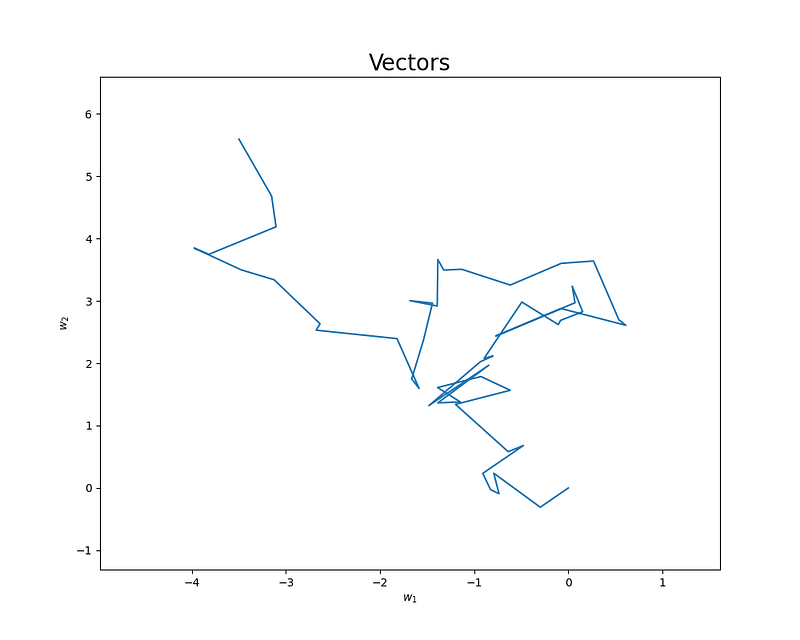
Vector plot in matplotlib
The above plot shows how the gradient evolves over multiple training timesteps and can provide insight about the training process.
In the next part, we will learn to plot the loss landscape contour along with the vectors.
Clap, Share and Follow if you like this article and find it helpful.
Originally published on Medium.